
ScanGo: PDF Scan & Sign
Not claimedTurn paper documents into a tidy PDF with ScanGo
By The Hoang Pham · ProductivityWhy we expect it: Clear value and a thorough description make this practical PDF scanner a promising debut for document-focused users.



In short
ScanGo: PDF Scan & Sign turns paper documents and chosen photos into a single PDF, with edge detection, perspective correction, and up to 50 pages per file. It suits people who need to scan and share documents from their phone. A stand-out detail is that documents are processed on the device and ScanGo has no server that receives them.
Summary by Debuts, based on the App Store listing.About
Turn paper documents into a tidy PDF with ScanGo. Scan multiple pages with your camera or choose existing photos, put the pages in the order you want, then export a PDF to save or share.
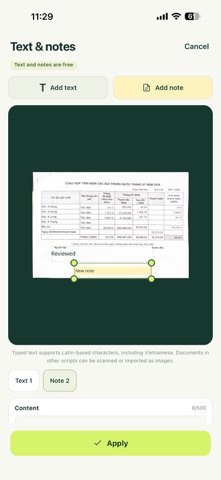
• Scan documents with edge detection and perspective correction in the native scanner. • Import the photos you choose from your library. • Crop within the scanner; preview, rotate, reorder and remove pages. • Add text or notes to pages for free. • Name and organize documents on your device. • Combine up to 50 pages into one PDF. • Export in A4, Letter or image-size format. • Share PDFs through the apps you choose. • Choose from 12 interface languages: English, Vietnamese, Spanish, French, German, Brazilian Portuguese, Japanese, Korean, Simplified Chinese, Traditional Chinese, Thai and Indonesian. English is the default, and your language choice is remembered.
Typed text and notes support Latin-based characters, including Vietnamese. Documents in other scripts can be scanned or imported as images.
With ScanGo Pro, draw your signature with a finger or import a signature image, then place and resize it on the page. Choose black or blue ink and one of three stroke widths; undo the last stroke or clear the drawing to start again. Add a company stamp by taking a photo or choosing an existing image. Remove light paper backgrounds from signature and stamp photos on your device, adjust the removal strength, and compare Before and After on the document or a transparent background. Check every stroke before applying: strong shadows may leave edges, and high strength may fade light ink. Use a close-up on plain, light paper; other printed marks may remain. It is a one-time in-app purchase, with your store's localized price shown before confirmation. Restore Purchases is available after reinstalling with the same store account. Signatures and stamps are images placed on pages, not certificate-based digital signatures.
ScanGo does not require an account. Your document images and PDF content are processed on your device; ScanGo has no server that receives your documents. You decide when to share a file and who receives it.
Documents are stored on your device. Export and back up important files before uninstalling the app or changing devices. Imported images are optimized for document PDFs; ScanGo is not an original-photo archive.
Contact: Hoàng P Support: thehoang15793@gmail.com Privacy policy: https://scango.solarvn.app/privacy
People rate it
Sign in to rate this app. Honest is what counts.
No ratings yet. Tried it? Be the first to rate it.
More Productivity apps
Best new Productivity apps this week ChickMark: Habit TrackerChickMark is a simple habit tracker for routines, goals, and reminders
 Dayflint: One Thing a DayToo many priorities?
 Snappy Do ItSix connected modes. One traceable journey.
 Fristo CAFMFristo is the app for Fristo CAFM, the facility management software
 UhWhat? Voice NotesCatch the thought before it disappears
- BeginAnywayMorning alarm for hard tasks: set one task, prove you started, build a streak