
Raster – Window Tiling
Niet geclaimdRaster puts your windows in place – with a keyboard shortcut, without dragging window…
Door Vllasa Ventures UG (haftungsbeschraenkt) · ProductiviteitWaarom we dit verwachten: Its detailed description and clear shortcut list make the value easy to grasp for window tiling fans.



Kort samengevat
Raster is a macOS window tiling app that snaps windows to halves, quarters, thirds, grids, and layouts using keyboard shortcuts or a menu bar panel. It suits Mac users who prefer keyboard control over dragging window edges. It stands out for making no network connections and collecting no data.
Samenvatting door Debuts, gebaseerd op de vermelding in de App Store.Over deze app
Raster puts your windows in place – with a keyboard shortcut, without dragging window edges.
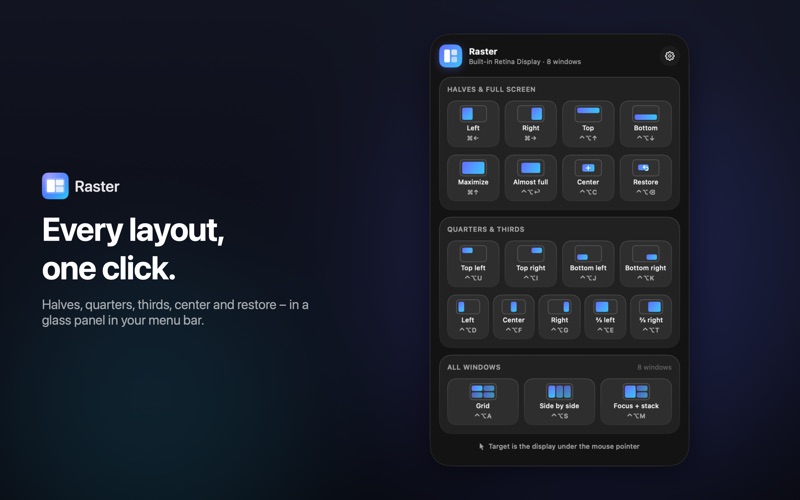
Cmd + Left Arrow and Cmd + Right Arrow snap the active window to the left or right half of the screen, Cmd + Up Arrow maximizes it. Press Cmd + Up Arrow again and the window gets its previous size back. Or click the Raster item in the menu bar and pick a layout from a glass panel designed for macOS Tahoe.
WHAT RASTER DOES
• Halves: left, right, top, bottom. • Press again to cycle the width: 1/2, 2/3, 1/3. Optionally, the window moves to the neighboring display instead. • Quarters, thirds and two-thirds – each with its own shortcut. • Maximize, almost maximize (with a margin), center and restore. • All windows on a display at once: as a grid, side by side in columns, or as “focus + stack” – the active window on the left, the others stacked on the right. • Multiple displays: the display under the mouse pointer is used, or the active window's display if you prefer. Move windows to the next or previous display with a shortcut; size and position are scaled proportionally. • Adjustable gap between windows (0 to 24 points). • Every shortcut is customizable: click the shortcut in Settings, press the new combination, done. • Pause shortcuts: a right-click on the menu bar item turns all shortcuts off temporarily, in case you need Cmd + Left Arrow and Cmd + Right Arrow to jump to the start of a line for a moment.
DEFAULT SHORTCUTS
Left / right half: Cmd + Left Arrow / Cmd + Right Arrow Maximize: Cmd + Up Arrow Top / bottom half: Ctrl + Option + Up Arrow / Ctrl + Option + Down Arrow Quarters: Ctrl + Option + U, Ctrl + Option + I, Ctrl + Option + J, Ctrl + Option + K Thirds: Ctrl + Option + D, Ctrl + Option + F, Ctrl + Option + G Two-thirds: Ctrl + Option + E / Ctrl + Option + T Almost maximize: Ctrl + Option + Return Center: Ctrl + Option + C Restore: Ctrl + Option + Delete Next / previous display: Ctrl + Option + Cmd + Right Arrow / Ctrl + Option + Cmd + Left Arrow All windows as a grid: Ctrl + Option + A All side by side: Ctrl + Option + S Focus + stack: Ctrl + Option + M
SIMPLE, NOT CLUTTERED
Raster deliberately skips dozens of options. One menu bar item, one panel, every layout as a tile. Light and dark mode are supported automatically. Raster does not appear in the Dock and can open at login if you like.
PRIVATE BY DESIGN
Raster collects no data and never opens a network connection – no analytics, no update check, no account, no ads, no subscription. Raster moves windows through Apple’s own Shortcuts: on first launch you add the bundled “Raster” shortcut with one click – no Accessibility permission needed. Window contents are never read. The source code is public on GitHub.
Raster is available in English and German and requires macOS 26 or later.
Zo beoordelen mensen de app
Log in om deze app te beoordelen. Eerlijk is wat telt.
Nog geen beoordelingen. Heb je de app geprobeerd? Beoordeel hem als eerste.
Meer apps in Productiviteit
Beste nieuwe apps in Productiviteit van deze week ChickMark: Habit TrackerChickMark is a simple habit tracker for routines, goals, and reminders
 Dayflint: One Thing a DayToo many priorities?
 Snappy Do ItSix connected modes. One traceable journey.
 Fristo CAFMFristo is the app for Fristo CAFM, the facility management software
 UhWhat? Voice NotesCatch the thought before it disappears
- BeginAnywayMorning alarm for hard tasks: set one task, prove you started, build a streak